
Settings Guide
This guide explains each page in DMJBot Settings and what to use it for in daily work.
Open Settings
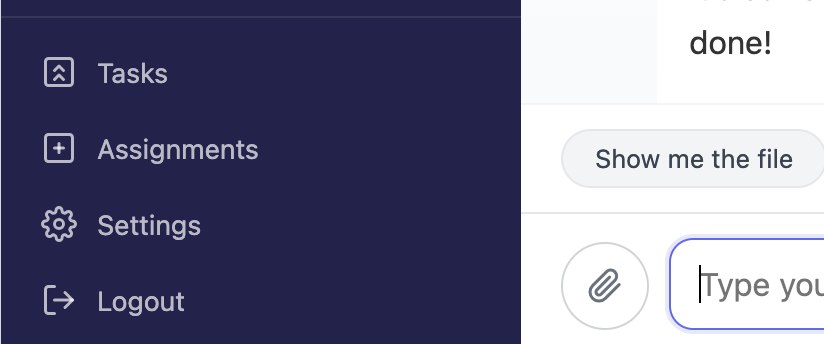
- Open DMJBot chat.
- Click Settings in the left sidebar.
- Choose a section from the settings menu.
Identity
Use this page to personalize your assistant.
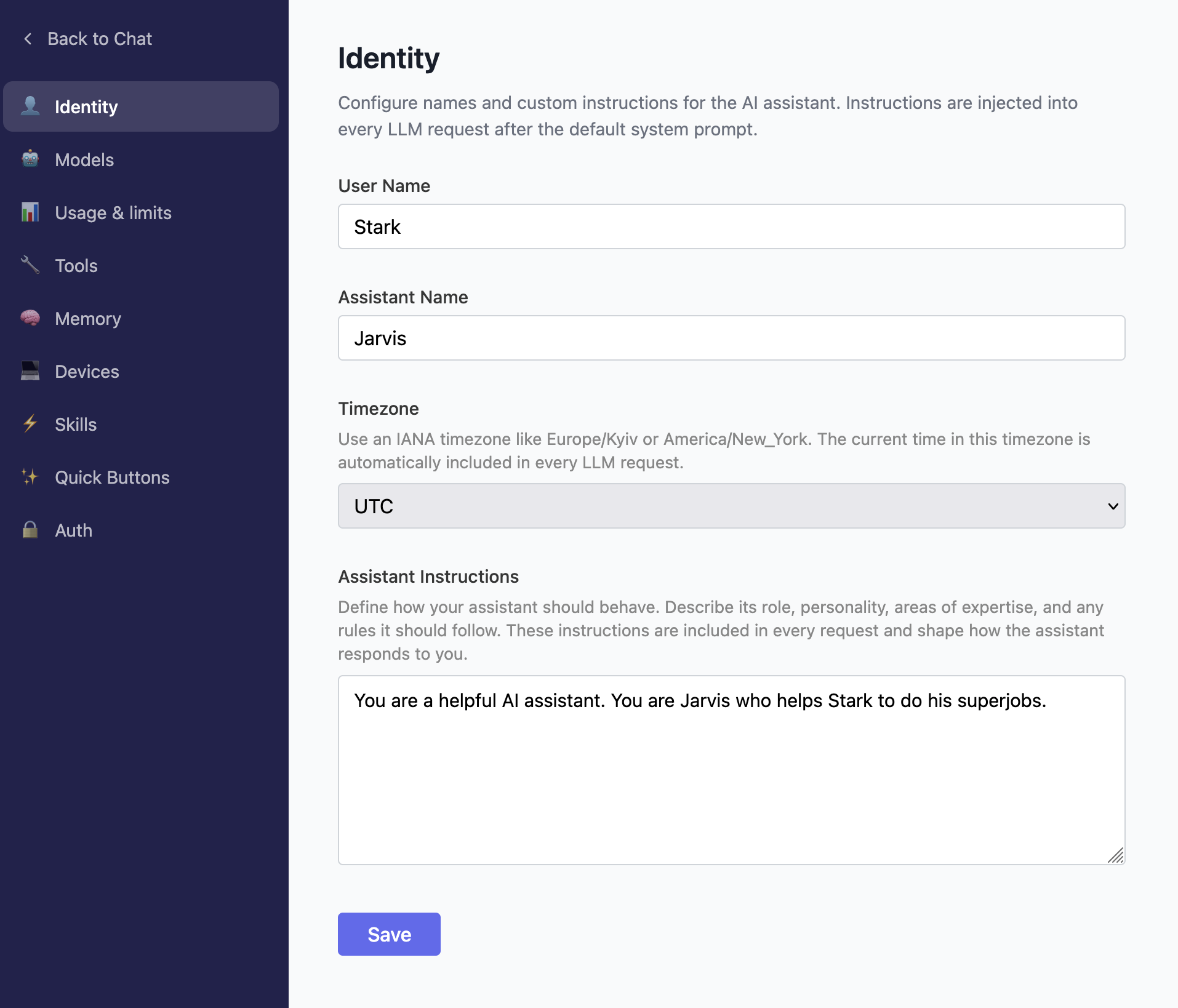
What you can set:
- Your display name.
- Assistant name.
- Timezone.
- Assistant instructions (style, tone, role, behavior).
Tips:
- Keep instructions short and clear.
- If replies feel too verbose or too formal, adjust instructions here.
Models
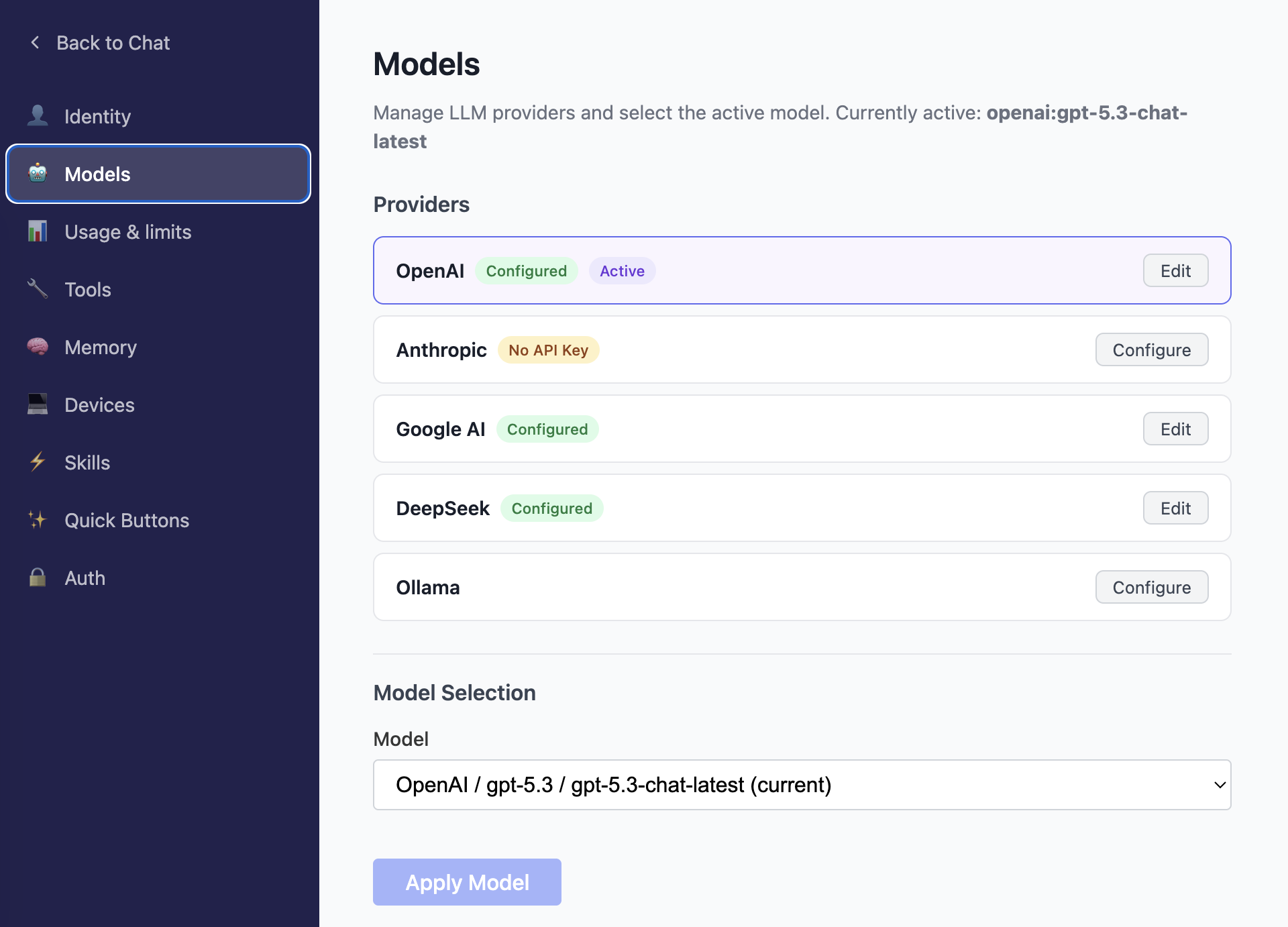
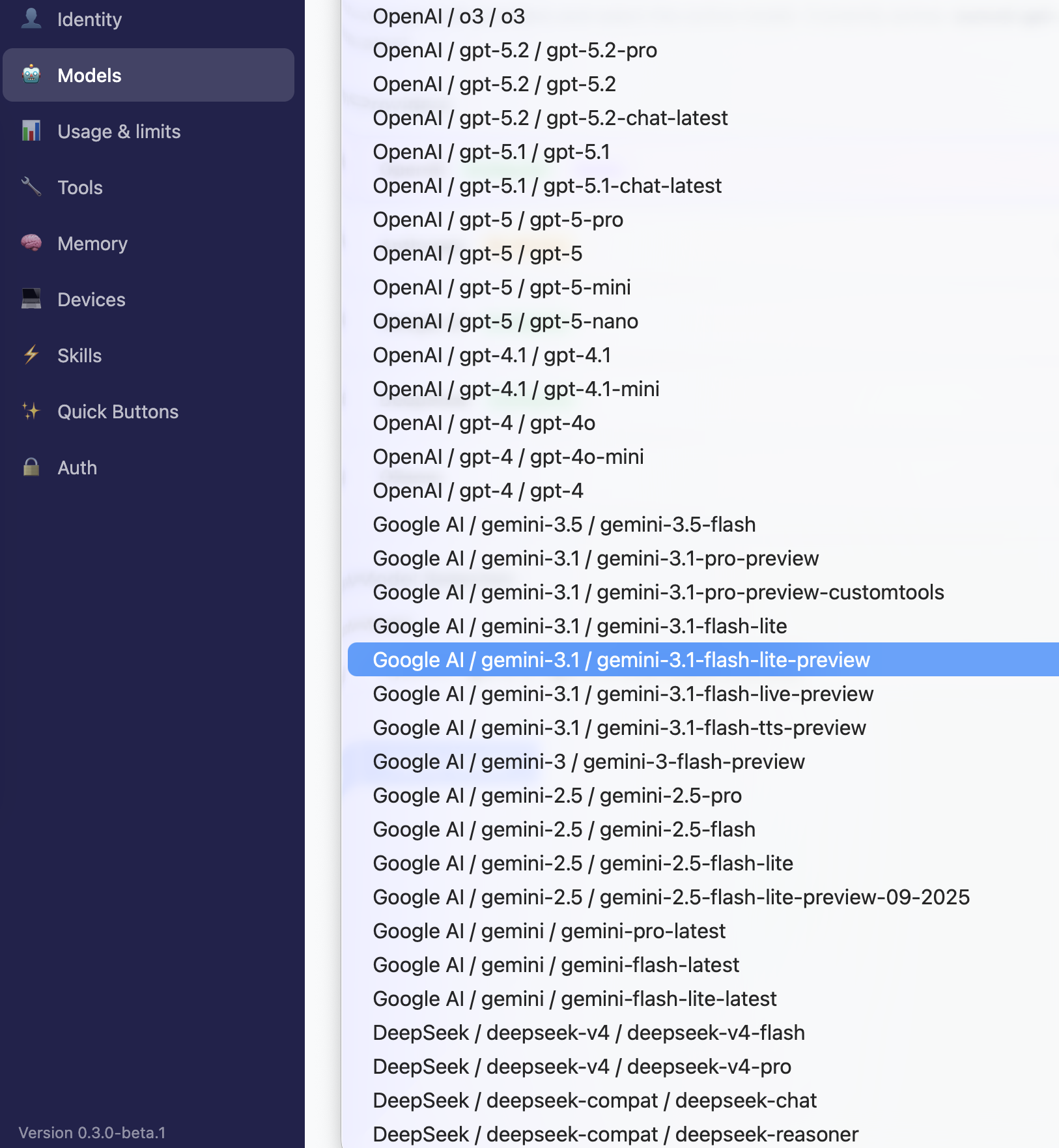
Use this page to choose which AI model powers your chats.
What you can do:
- Add or update your provider credentials.
- Select the active model.
- Change model later at any time.
Tips:
- If responses are slow or expensive, switch to a lighter model.
- If quality is too low, switch to a stronger model.
Usage & Limits
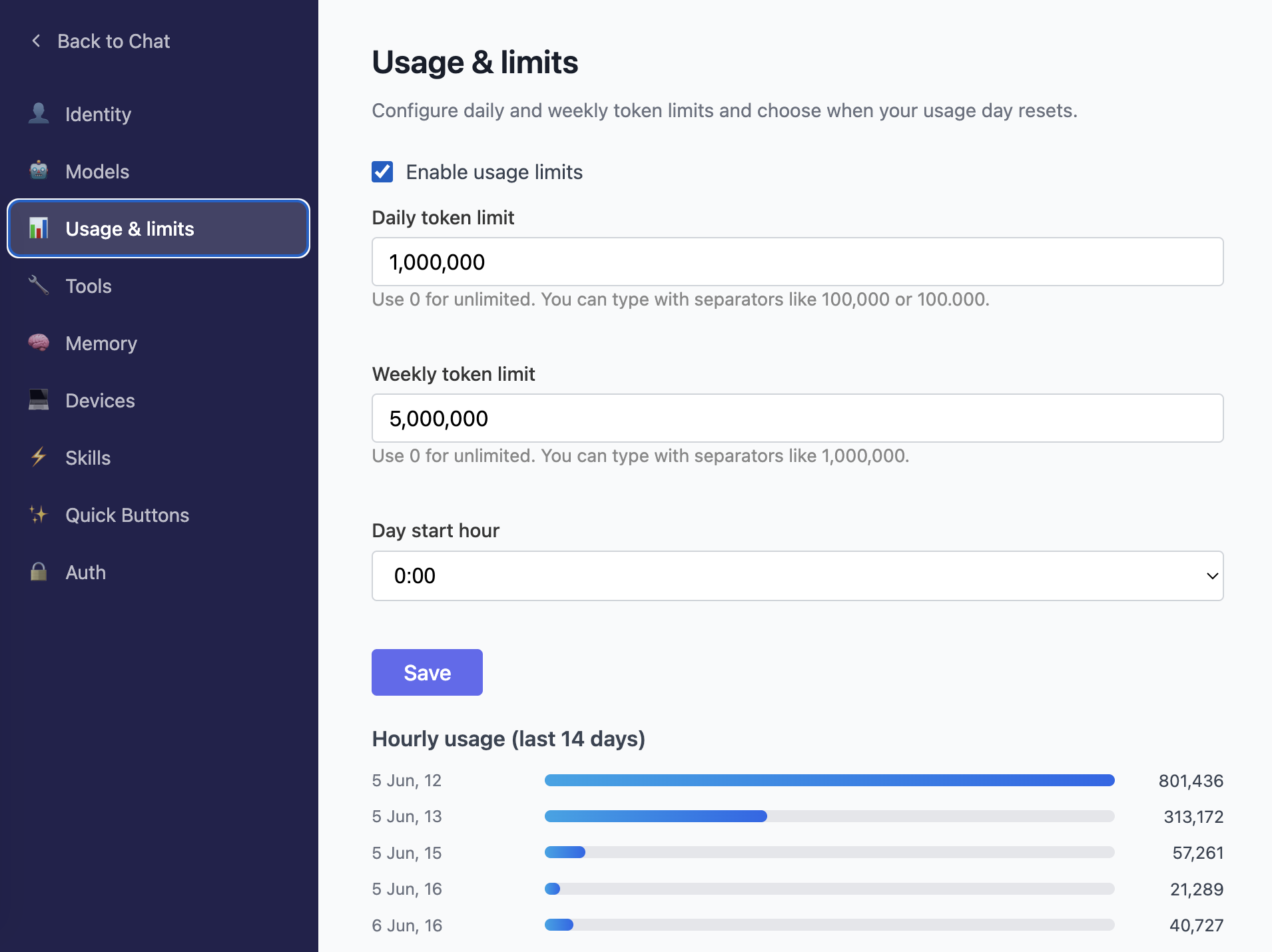
Use this page to control token usage and monitor activity.
What you can do:
- Turn limits on or off.
- Set daily token limit.
- Set weekly token limit.
- Choose when your usage day resets.
- View hourly and daily usage charts.
Tips:
- Set limits if multiple people share one account or budget.
- Use 0 for unlimited, only if you are comfortable with unrestricted usage.
Tools
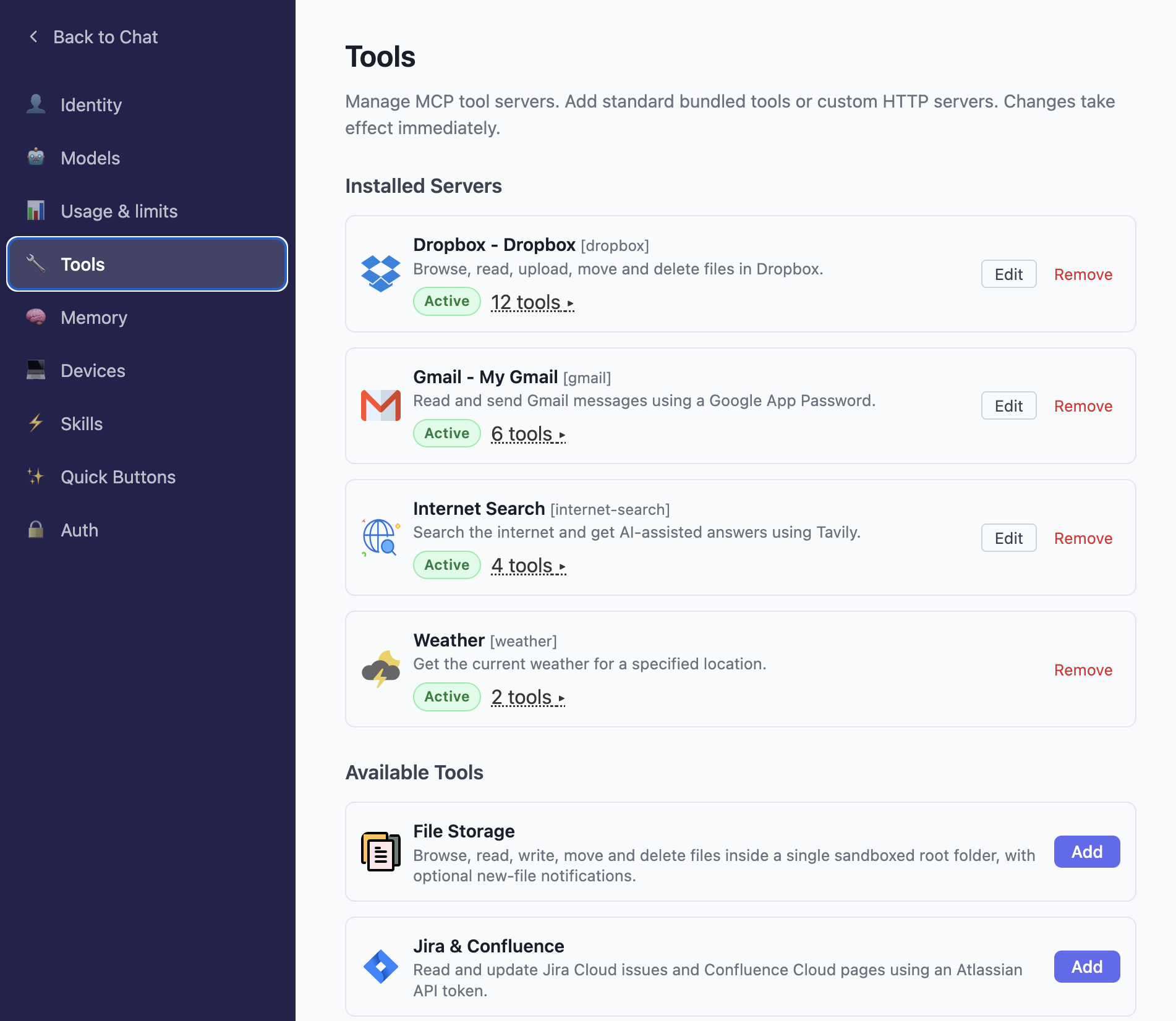
Use this page to connect tool servers that extend what DMJBot can do.
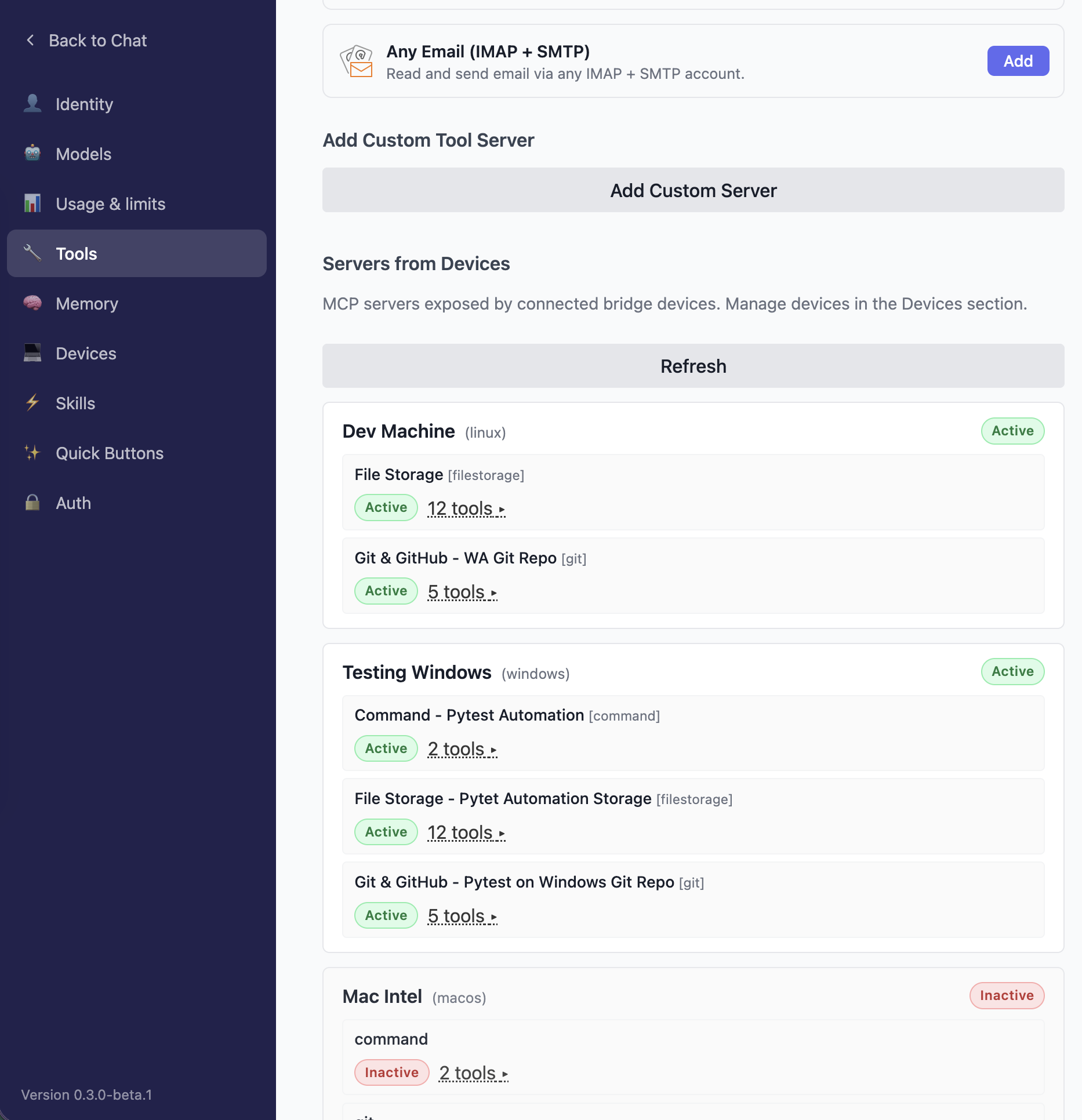
What you can do:
- Add bundled tool servers from the catalog.
- Remove or edit installed servers.
- Start inactive servers.
- Add a custom server (URL-based).
- See tool servers coming from connected devices.
Tips:
- Start with bundled tools first.
- Add custom servers only when you trust the source.
Memory
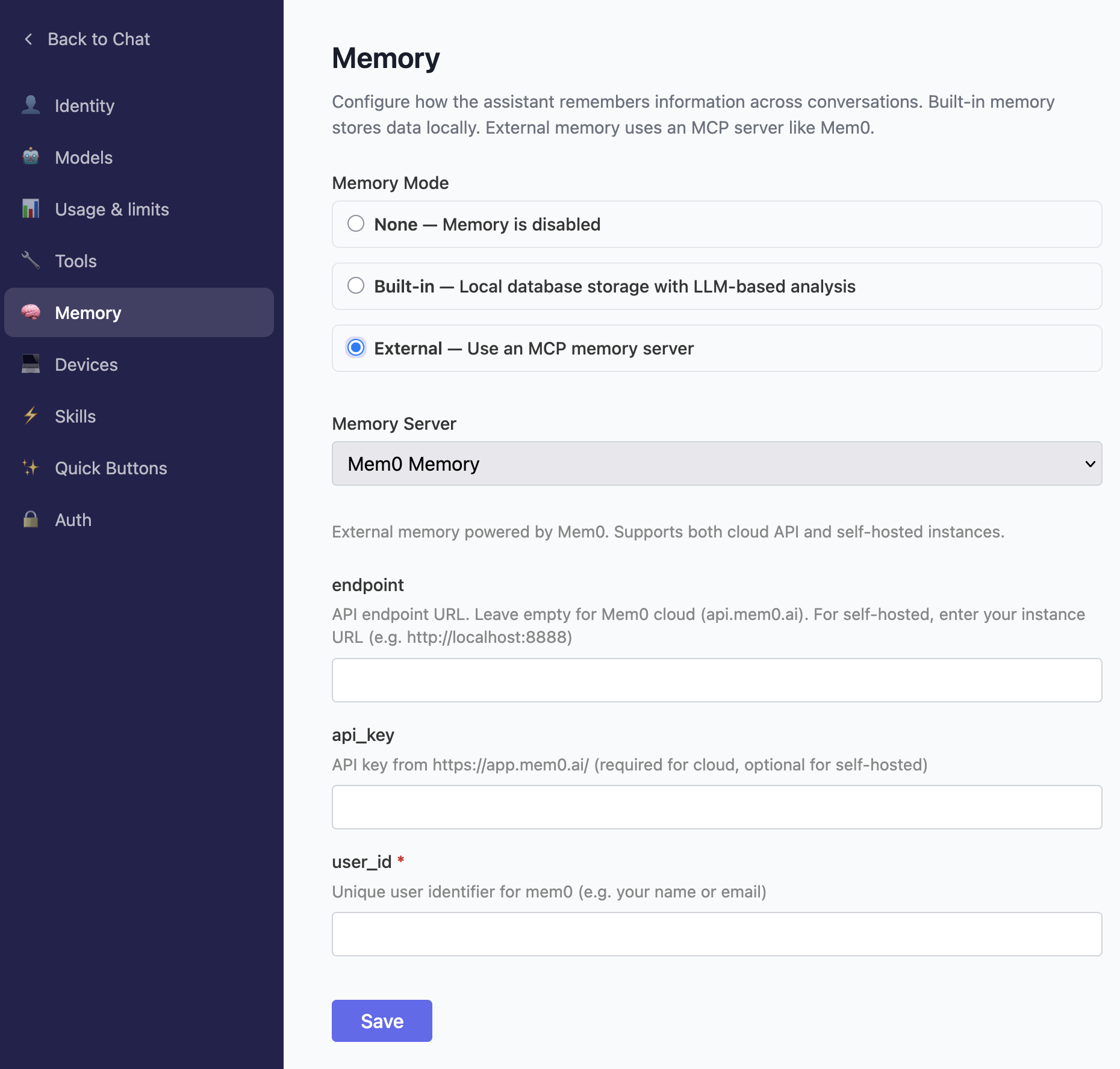
Use this page to control whether the assistant remembers information between chats.
Memory modes:
- None: no memory saved across conversations.
- Built-in: memory saved locally.
- External: use an external memory service.
Tips:
- Choose None for maximum privacy and stateless behavior.
- Choose Built-in for most users.
- Choose External only if you already use a separate memory service.
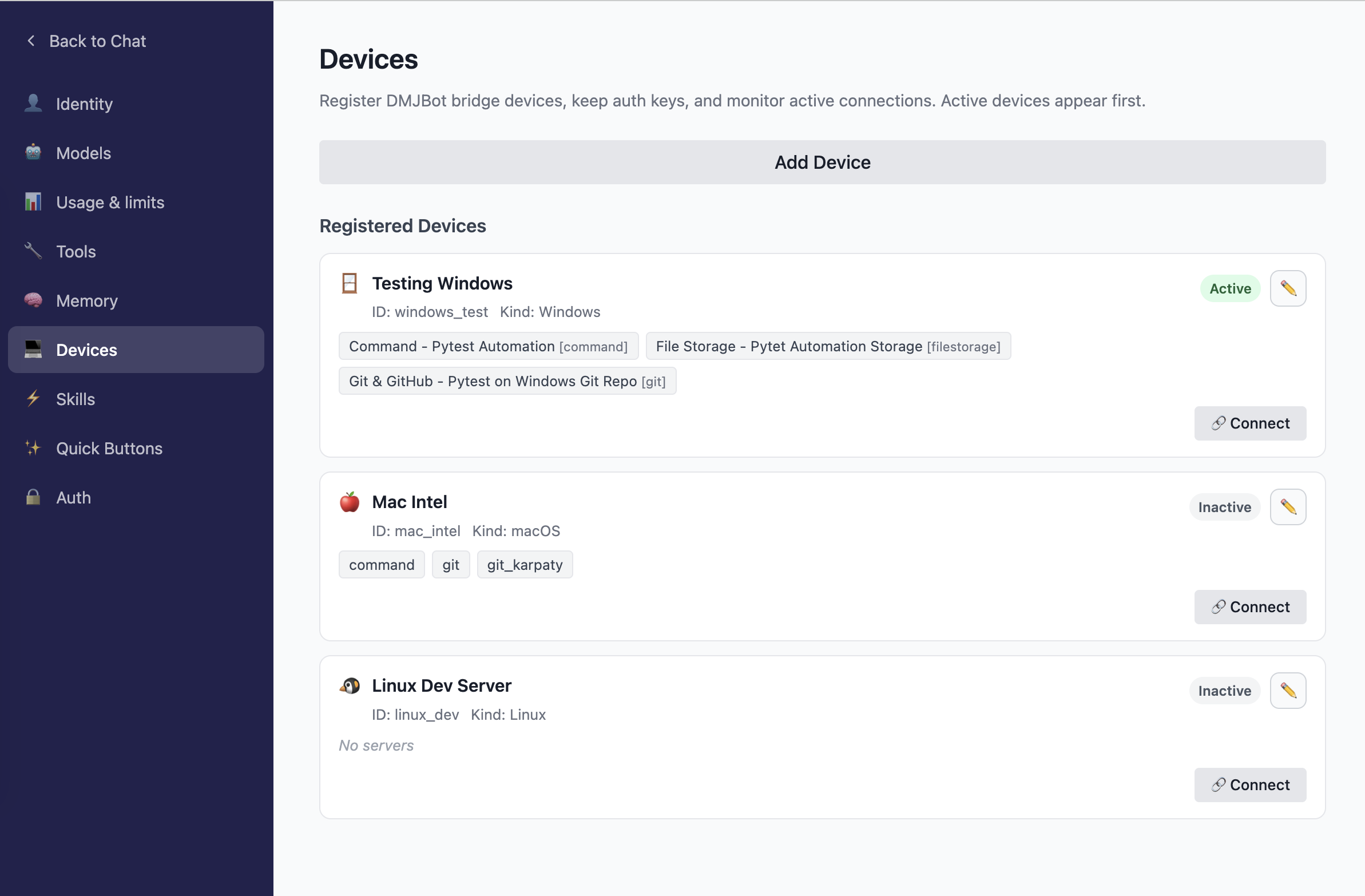
Devices
Use this page if you connect external bridge devices.
What you can do:
- Add a device.
- Rename a device.
- Open connection details.
- Copy connection URL.
- Regenerate key.
- Delete device.
- See servers reported by each device.
Tips:
- Regenerate a key if you think it was exposed.
- Delete devices you no longer use.
Skills
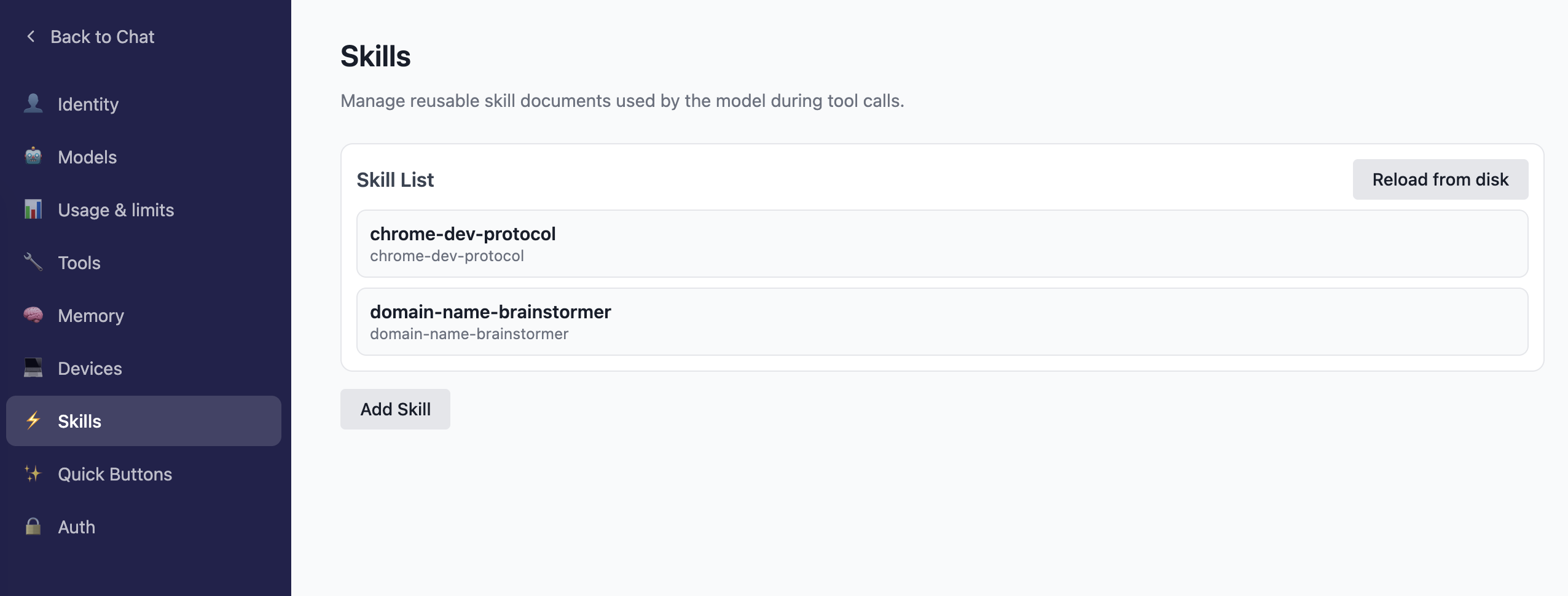
Use this page to manage reusable skill content for specialized tasks.
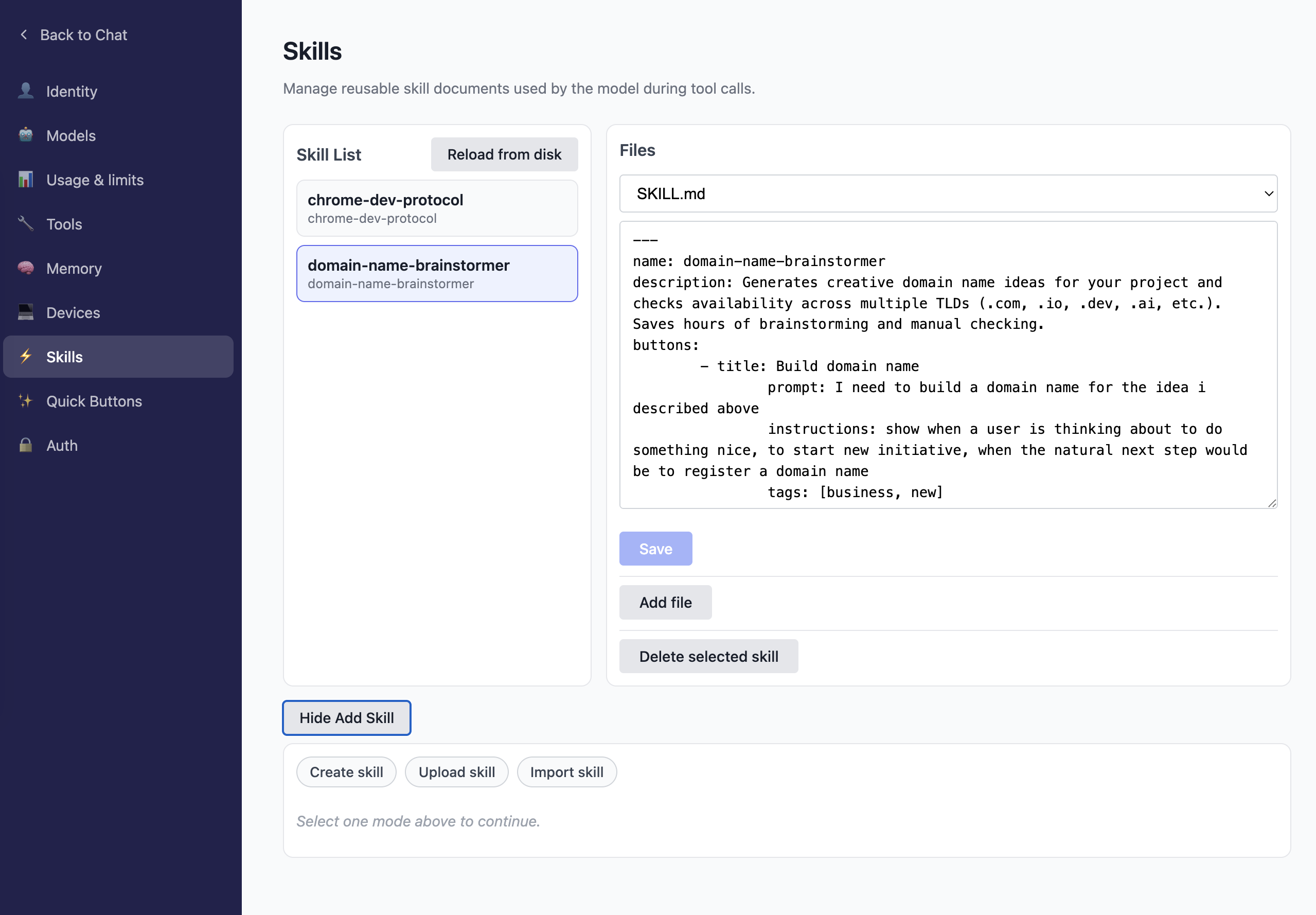
What you can do:
- View all skills.
- Create a new skill.
- Edit files inside a skill.
- Add or delete files.
- Upload a skill file.
- Import from URL.
- Import from ZIP.
- Reload skills from disk.
- Delete a skill.
Tips:
- Use clear names for skills so they are easy to find later.
- Keep each skill focused on one job.
Quick Buttons
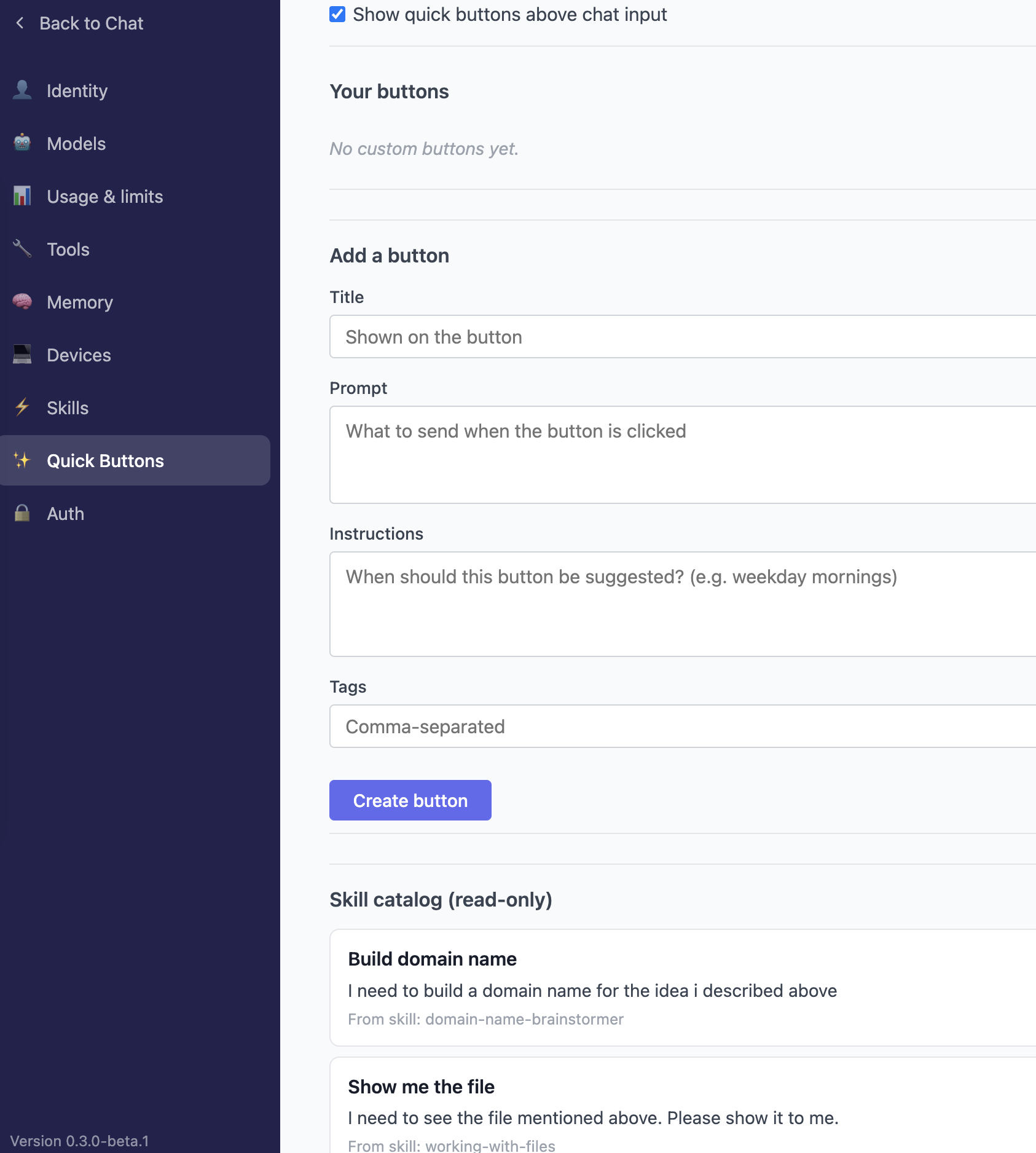
Use this page to create one-click prompts shown above the chat input.
What you can do:
- Enable or disable the quick buttons feature.
- Create your own quick buttons.
- Edit button title, prompt, instructions, and tags.
- Choose where each button is visible (common context and/or specific projects).
- Enable/disable individual buttons.
- Delete buttons.
- View read-only buttons provided by skills.
Tips:
- Create buttons for repetitive daily prompts.
- Keep button titles short and action-oriented.
- Scope a button to a project to keep it out of unrelated chats.
Projects
Use this page to group related chats and control which tools, devices, skills and quick buttons each group can use.
What you can do:
- Create or delete projects.
- Use the access grid to set, for each tool server, device, skill and quick button, whether it is available in the common context, in all projects, or only in selected projects.
- Edit a project's own title, instructions and tools from the project's settings.
Tips:
- Use one project per client, product, or area of your life.
- A resource is never turned off everywhere — clearing all options leaves it in the common context.
- New servers and devices start private to the common context until you grant them to a project.
See the full Projects guide for how scoping and shared files work.
Auth
Use this page to change login credentials.
What you can do:
- Change login name.
- Change password.
Tips:
- Use a strong, unique password.
- If you change login and cannot continue in the current session, sign in again.